The way you interact with your audience is crucial to determine their level of engagement with your products and services and knowing how to take advantage of the community module in your portal will be helpful in this process.
This article will elaborate on how to take advantage of the three group types in the community, their definition, and provide some examples of real-life applications for each one of them.
When creating a group in the community, you will find three different group types in the form: Public, Private, and Secret. You will find a form like the one in the image below by following this pathway:
Public groups:
This group type does not require an invite to join it and all members can see that it exists when looking at the groups' section in the phone app.
Normally, club managers use it when they want to share updates that are in everyone’s best interest. A good example of this is the main community page, where you can post something and everyone in your system will be automatically notified via both an email and a push notification.
Private groups:
This group type does require an invite to join it and all members can see that it exists when looking at the groups' section in the phone app.
Usually, club owners use this when they want to segment the information that they communicate to certain audience types, so the main page remains clean of information that may not be relevant to everyone. They control who gets the invite and who will be added as a member of those groups.
Good examples of how this group type is used in real life are diverse, but just name a few there are: staff only groups, women only, PRO members only, Coaches only, Healthy Meals Group, etc.
Secret groups:
This group type does require an invite to join it, and nobody can see that it exists in the community, except for the club manager and the members that are manually invited and/or added by him/her.
Although rare, this group is extensively used by club managers to create a direct one-on-one communication channel with their clients or between a coach and a client that is paying extra for their services (like private training, etc.). It is important to point out that we do not support chats in our system, but this is a clever and useful workaround.
How do I add someone to a group?
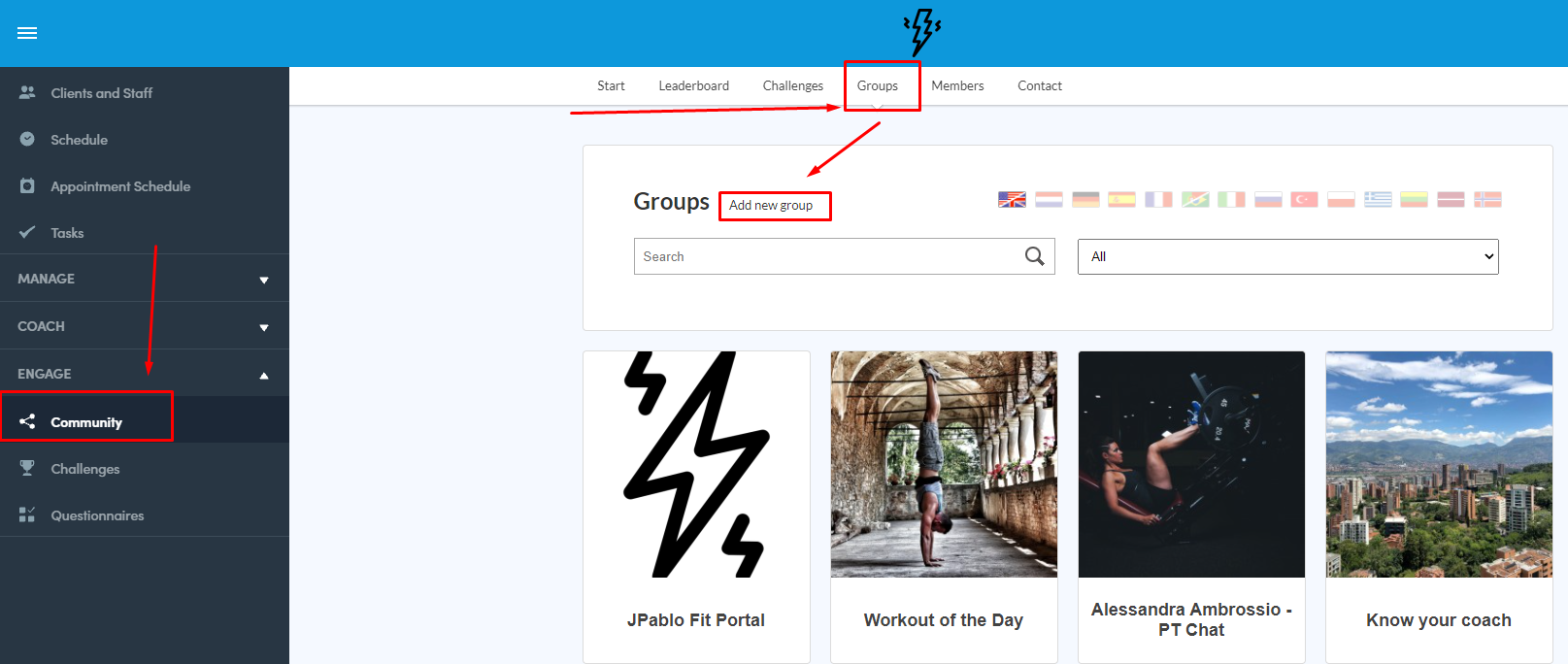
First, you will need to go to the community in your portal by following this pathway:
Once you are there, you may click on the Groups box in the upper section of the screen. This will take you to the Group overview, where you can see all the groups that are enabled in your portal (see image below).
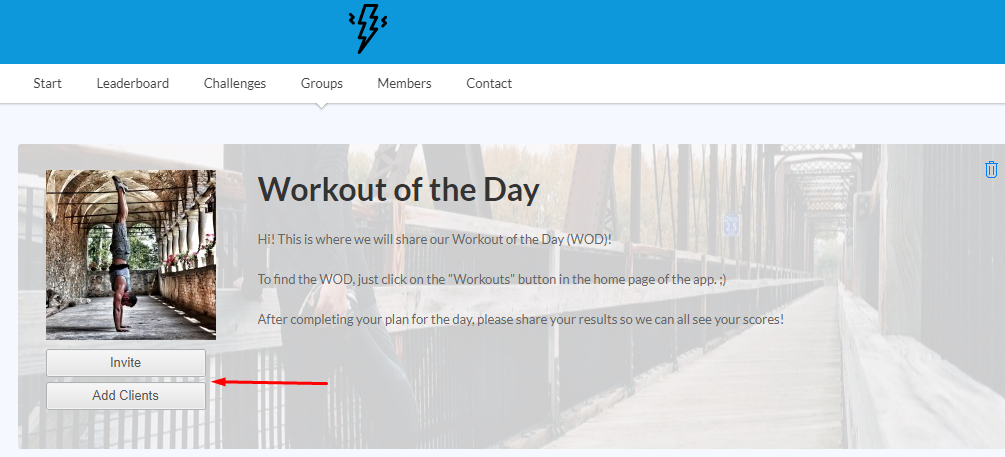
Once here, you may click on the group that you want to add members to and then click on either “invite” to send an invitation to a member, or on “Add client” to directly add a client to the group of your selection. See the image below: